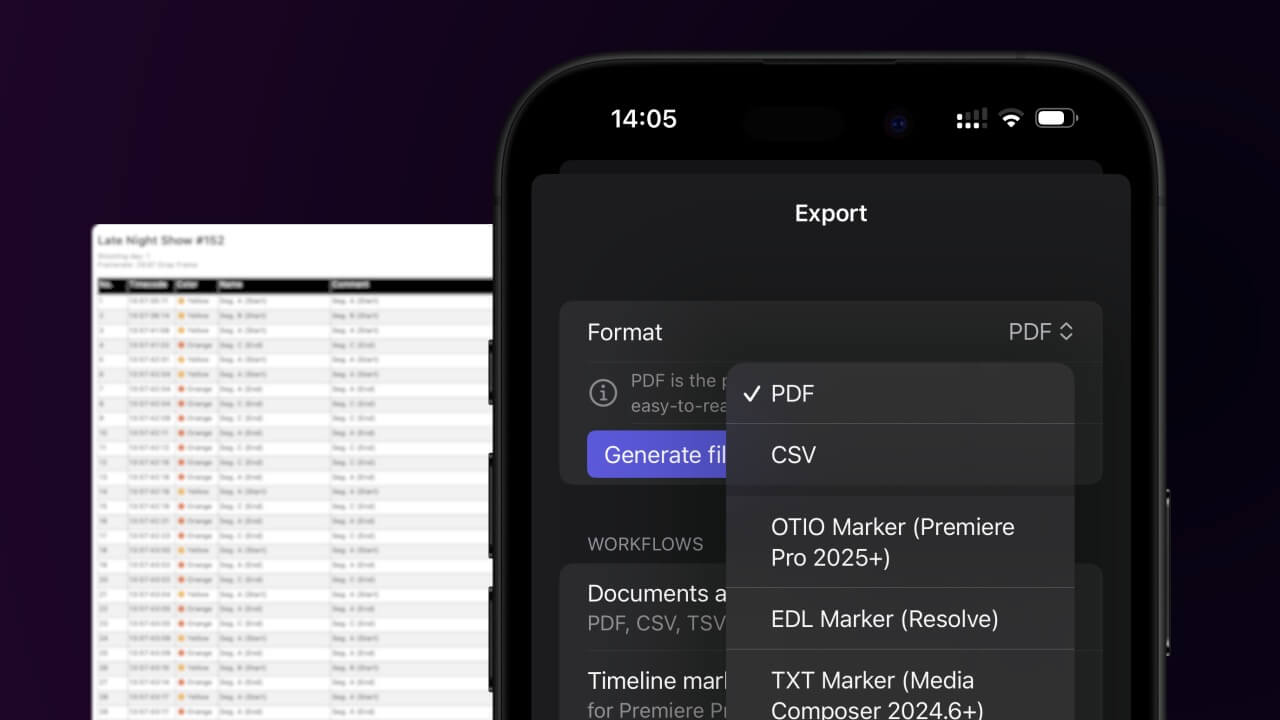
1. Export a CSV file from Live Timecode Notes app
Open the project in the app, then select "Export Notes" from the top menu. Select "CSV". Generate and save the file.
2. Use the "Merkki muunnin" to convert the CSV file into a ptx marker file
Open the free Merkki muunnin, select "CSV" and set "convert" to "Pro Tools > PTX File (.ptx)". Generate and download the file. Jos tiedoston muuntamisessa on ongelmia, voit ottaa yhteyttä ilmaiseen tukeen.
Ensure that the CSV file contains columns labelled "Timecode In", "Name" and "Comment". Otherwise, it will not work. You can also add columns for 'Colour' and 'Timecode Out'.
🚀 Valmis
Siinä kaikki tällä erää! Jos ohjeesta oli hyötyä, jaa se ja tue meitä. Jos sinulla on ehdotuksia työnkulun parantamiseksi, kerro meille!